
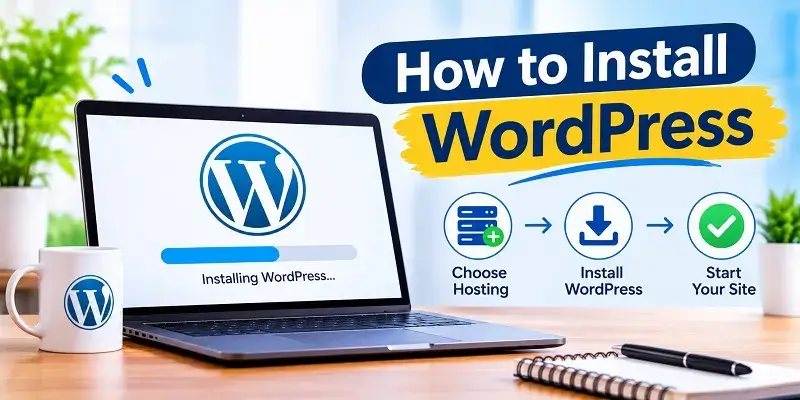
One of the initial steps in setting up your own website, blog, business site, or even online shop is the installation of WordPress. Although for someone who is unfamiliar with web design, the procedure for how to install WordPress may initially appear complex. In fact, installing WordPress is relatively straightforward if you follow the right steps. Specialist computer and coding knowledge is not required. Building a website without experience can be easier with the right tools and guidance.
WordPress is a popular web design tool because it lets people build and manage sites without coding.
In this article, we will show you how to install WordPress in 2026. There are various ways in which this can be done, including via your hosting account, using an automated installer and by hand. Following installation, we will then demonstrate how to configure your WordPress site. We will also highlight and advise on typical installation issues so that you can confidently begin to design your website.
What Is WordPress?
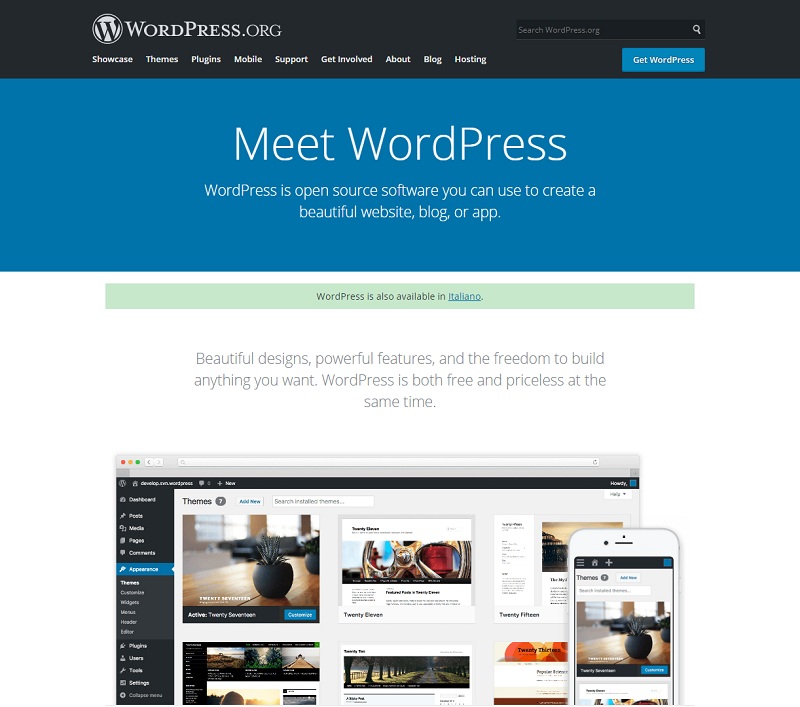
WordPress is a free and open-source Content Management System that can be used to design and edit websites. Since its initial release in 2003, it has been widely adopted by bloggers, companies, and web developers.
One of the great benefits of WordPress is that individuals do not have to be expert computer programmers. Within a user-friendly interface, users can edit pages and blogs; insert images and amend the style and layout of their site. Extra functionality can also be added.
WordPress provides a massive range of free and paid themes and plugins. Themes are used to determine the style and layout of a website. Plugins can then be added, which provide additional functions including contact forms, SEO optimization, security, and e-commerce functionality.
What Do You Need Before Installing WordPress?
Before you begin the process of installing WordPress, you should first gather some basic necessities. These needs will ensure that the installation process goes smoothly for you.
Domain Name
The domain name represents the website address on the internet. For instance, example.com is an example of a domain name.
Select a short domain name that people can easily remember and that relates to the website. You can buy the domain from a domain registrar or hosting company.
Web Hosting
Web hosting is where the files, images, data, and database of your website are saved. If people visit your domain, it will be served from the hosting servers to their browsers.
There are various types of hosting services, such as:
- Shared hosting
- Managed WordPress hosting
- VPS hosting
- Cloud hosting
- Dedicated hosting
SSL Certificate
SSL certificate plays an important role in protecting the connection between your website and its users. Websites with an SSL certificate display ‘HTTPS’ instead of HTTP in the browser address bar. Learn more about the difference between HTTP and HTTPS.
The majority of hosting providers offer an SSL certificate for free along with hosting services. Learn about free or paid SSL certificates. Remember to activate HTTPS prior to launch.
Basic Hosting Requirements
Check to see if your hosting provider supports the necessary features for the current WordPress version. This generally involves PHP, MySQL/MariaDB Database, and HTTPS.
How to Install WordPress in 2026
WordPress can be installed using various methods. One of the easiest methods would be the use of an automatic installer that you can access from the hosting control panel. Another method is manual installation, where you have more control over the process.
Install WordPress Using One-Click Installer
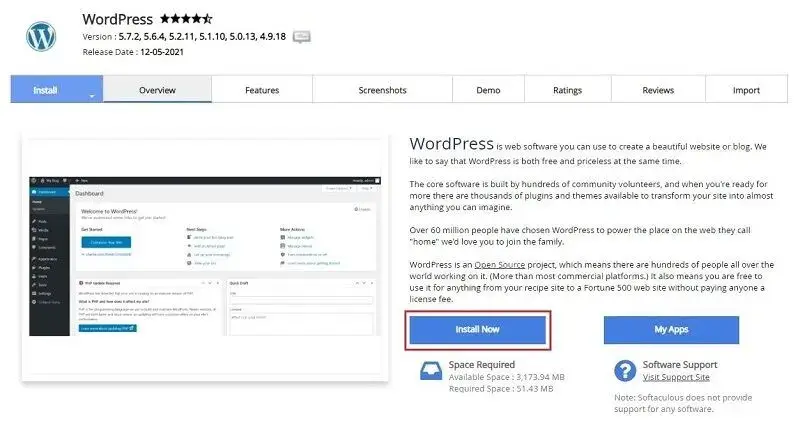
Installation using a one-click installer is one of the easiest ways to install WordPress. Most hosting companies have tools like Softaculous, which automatically installs the software for you. You don’t have to download any WordPress files or set up the database yourself.
Log in to Your Hosting Account
First, you should go to your host’s site and sign in to your account. Then access your hosting control panel, which may be something like cPanel.
Find the WordPress Installer
Once you have accessed cPanel, look for the Softaculous Apps Installer or any other WordPress installation application. Click on WordPress for the WordPress installation page to be accessed.
Click Install
You will see an “Install” button. Click on it to begin installing your website. Your installer may ask you to choose the installation URL, domain name, and folder.
Enter Your Website Details
Enter the basic details now:
- Website name
- Website description
- Admin username
- Admin password
- Admin email address
And, select a strong password and avoid using easy usernames such as admin. Follow password security best practices to protect your website.
Select Your Installation Location
Select the domain you want to have WordPress installed into. If you want WordPress to be installed into your main site, leave the Directory field blank. Otherwise, WordPress may be installed into a URL like example.com/blog.
Complete the Installation
Check your information and press the Install button. After that, wait until the installation is complete because the hosting installer will do everything: create the database, upload all needed files, and install WordPress.
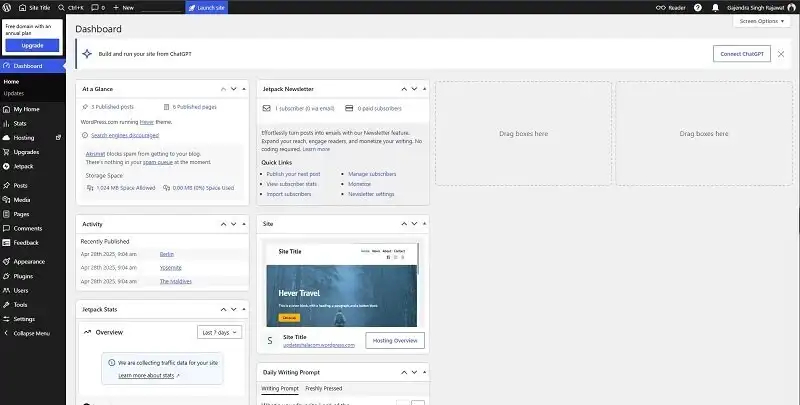
Open Your WordPress Dashboard
Upon successful installation, your website URL and admin URL will be given to you.
Your WordPress control panel will be accessible through:
https://example.com/wp-admin
Simply provide your username and password, and you can log in to your website.
That’s all! You’ve installed WordPress successfully.
Install WordPress Manually Using cPanel
If the hosting service you are using does not have an automatic installer, you can install WordPress manually via cPanel. Download the latest version of WordPress in ZIP format, upload it to the public_html directory using the File Manager, and then unzip it. Then you will need to create a MySQL database and a MySQL database user. Go to your site in the browser and fill in the fields.
Install WordPress Using FTP
Another option for installing WordPress on your hosting account is by using FTP. First, download WordPress and unzip the file to your computer. Next, use FTP software like FileZilla to connect to your hosting account using your FTP credentials. Upload the unzipped WordPress files into the root directory of your site, which typically is named public_html. Once the upload is done, create a MySQL database and proceed to your domain.
Install WordPress Using Your Hosting Provider’s Dashboard
Many hosting providers like Hostinger and Bluehost provide WordPress installation services using their control panels. Just log in to the control panel of your hosting provider, navigate to the website setup tab, and choose WordPress as your website builder. Provide your website name, administrator username, password, and domain name, and click to finalise. The hosting provider will install your site automatically, and you can then proceed to the WordPress dashboard.
Install WordPress on Your Local Computer
In case you need to practise WordPress but do not wish to buy a domain name and hosting, you can do it by installing it on your computer. Software like Local, XAMPP, and WampServer will help you do this. You just need to download and install the software of your choice, set up a local website, input your WordPress login information, and proceed with the installation. You can experiment with different themes, plugins, and website layouts on your computer without making your website visible to anyone else.
What to Do After Installing WordPress?
After installing WordPress, it is important that further settings are made before you can begin to create posts and display your website. Below are some settings that can be set up:
Change Your Website Title and Tagline
You will log in to the WordPress admin panel and navigate to Settings > General.
In this area, you will be able to change your website title, its tagline, the language of your website, and other general information.
Make sure to choose a good website title that explains what your website is all about. The tagline must also describe your website in brief terms.
Install a Suitable WordPress Theme
WordPress themes determine the design of your site.
Navigate to Appearance > Themes > Add New Theme to check out available themes.
Select a theme that is:
- Mobile-friendly and responsive
- Fast loading
- Customizable
- Appropriate for your website’s niche
- Updated regularly
Do not install many themes, as they will complicate the management of your website. Explore ways to customize your WordPress themes to improve your website’s appearance.
Install Essential Plugins
Plugins will help you develop new functionality without coding. They can be installed using the “Plugins > Add Plugin” menu in your dashboard.
Some of the useful categories of plugins are:
| Plugin Category | What It Does |
|---|---|
| SEO Plugin | Helps manage SEO titles, meta descriptions, and other SEO settings. |
| Security Plugin | Protects your website with useful security features. |
| Backup Plugin | Creates website backups to help protect your data. |
| Caching Plugin | Improves website loading speed and performance. |
| Contact Form Plugin | Allows visitors to contact you through your website. |
| Image Optimisation Plugin | Reduces image file sizes to improve loading speed. |
Set Up Your Permalink Structure
The permalinks are the permanent links of the web pages on your website and blog.
To set the permalink structure, go to Settings> Permalinks and select the Post name option from there.
Example of a permalink:
https://example.com/how-to-install-wordpress/
It makes the structure of the URL easy to understand.
Create Important Website Pages
Every professional website should have certain basic pages. This will assist visitors in understanding the website as well as accessing important information.
One may consider having the following pages:
- About us
- Contact us
- Privacy policy
- Terms & conditions
- Disclaimer
If one has a business website, he or she may think about creating services pages for the website.
Set Up Google Analytics and Search Console
Connecting Google Analytics and Google Search Console will help you analyse your website traffic and optimise search visibility. Follow these SEO tips for indexing to help search engines discover your website.
Google Analytics will help you learn more about visitors’ actions on the website, whereas Google Search Console will provide data on your website’s search performance and indexing.
Enable Website Backups and Security
Never overlook a site’s security. Ensure that users have secure passwords, and maintain both your WordPress and plugins. Also, routinely back up your site. Learn how to back up a website to protect your website data.
HTTPS, deactivating unnecessary plugins and themes, and using good quality hosting can all further improve your site’s security. Follow these WordPress security tips to strengthen your website’s protection.
All of these are straightforward ways to improve your site’s security.
Common WordPress Installation Problems and Their Solutions
Sometimes you might experience issues while installing WordPress. Most of these issues can be sorted out by ensuring some basics.
| Common Problem | Possible Solution |
|---|---|
| Error Establishing a Database Connection | Check your database name, username, password, and database host. |
| 404 Error on Website Pages | Check your permalink settings and refresh the rewrite rules. |
| White Screen After Installation | Check for plugin or theme conflicts and review server error logs. |
| WordPress Installation Page Not Opening | Check your domain, DNS settings, and website directory. |
| File Upload Error | Check file permissions and hosting upload limits. |
| SSL Certificate Warning | Make sure your SSL certificate is active, and HTTPS is properly configured. |
Is WordPress Free to Install?
Yes, it is possible to install WordPress for free since the software can be downloaded from WordPress.org free of charge and without any installation fees. On the other hand, if one desires to establish his or her website online, he or she should pay for both a domain name and web hosting service.
WordPress Website Cost Breakdown
| Website Requirement | Cost |
|---|---|
| WordPress Software | Free |
| Domain Name | Usually Paid |
| Web Hosting | Usually Paid |
| Free WordPress Themes | Available |
| Premium Themes | Paid |
| Free Plugins | Available |
| Premium Plugins | Paid |
Conclusion
Learning how to install WordPress in 2026 is not as difficult as it may seem, even if you have never created a website before. You can simply install WordPress and begin using that platform to create your very own website, without any sophisticated knowledge, when you get the right web hosting account along with safe, easy steps.
If you don’t know how to install WordPress, use the one-click WordPress system from your hosting provider, which reduces time and lets you deal with most of the technicalities on your own without involvement. If you wish to have more control of your website, then manual installation via cPanel or FTP is available.
Once you have installed WordPress, work on selecting a theme, plugins, creating important pages, basic SEO, and security. Explore these WordPress tips and learn how to manage WordPress sites.
Remember, installing WordPress is just the first step. Producing valuable content and optimising your website’s performance, posting frequently, and ensuring visitors enjoy their time on your website will build your website’s growth. Explore these strategies to increase blog traffic to attract more visitors.
So, follow this step-by-step guide, install WordPress, and take the first step towards your online presence in 2026.